21 Jul

Using a Custom PHP.ini File and Make PHP Changes

The php.ini file is the default configuration file for running applications that require PHP. It is used to control variables such as upload file’s size, timeouts, and resource limits. We use suPHP(pronounced sue-p-h-p) environment in all our servers which allows our user to have their own custom php.ini file and change certain PHP settings as per their CMS requirement.

Below are some of the most common lines that are altered when making custom PHP changes:

  • memory_limit
  • upload_max_filesize
  • post_max_size
  • max_execution_time
  • max_input_time
  • register_globals
  • magic_quotes_gpc
  • date.timezone


To being creating your very own custom php.ini file:

php.ini Setup Process:
1. Create a file called php.ini from your local machine with the PHP values you want to modify.
2. Upload the newly created php.ini file to your cPanel account under the public_html folder.

Note: Make sure the file name is correctly setup which is php.ini

suPHP Path Setup Using .htaccess:
Create a .htaccess file and put the following code: suPHP_ConfigPath /home/username/public_html and upload the file to your cPanel account under the public_html folder.

Note 1: Make sure to change the cPanel username with the actual account username.

Note 2: If you already have an .htaccess file then you can just modify the .htaccess file by accessing it using File Manager and setup the path. FYI .htaccess is an hidden file so please make sure you enabled the option that says “Show Hidden Files(dotfiles)” while accessing File Manager.


Once you have completed the above steps your php.ini file will be active. Any entries you placed in the file will be used in place of the entries from the server’s main php.ini file.

Some examples of what may be changed by using a custom php.ini file are:

upload_max_filesize = 10M
post_max_size = 10M
max_execution_time = 30

Should you require any further assistance with creating a custom php.ini file then check in with one of our fantastic support people at http://tetrahostbd.com/contact.

19 Nov

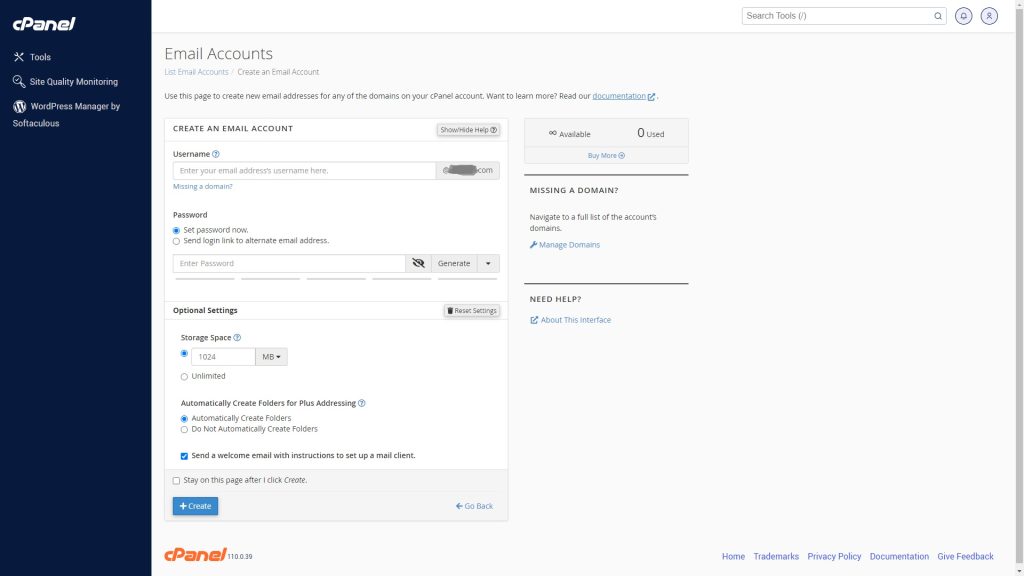
How to Create a Webmail Account in cPanel

Creating email accounts in your hosting account’s Control Panel (cPanel) is simple. Follow the steps below to set up a webmail account:

Step 1: Log into cPanel

If you’re using shared web hosting, check the email address you registered with your hosting provider. You should find your cPanel login details there. Use these credentials to access cPanel.

Step 2: Access Email Accounts

Once you’re on the cPanel dashboard, locate and click on the Email Accounts icon.

Step 3: Create a New Webmail Account

Click the +Create button to begin setting up a new webmail account.

Step 4: Set Up Your Webmail Account

On the next page, fill in the following details:

  • Username: Enter your desired username (e.g., tetrahost).
  • Password: You have two options for setting a password:
    • Set password now: You can create a password manually or use the system-generated one.
    • Send login link to alternate email address: This option allows you to send a login link to an alternate email, where the user can set their own password.

Step 5: Explore Optional Settings

Expand the Optional Settings section for additional options such as setting email quotas or managing directories.

Step 6: Finalize Account Creation

Click the +Create button to complete the setup.

Once the account is created, you can access webmail via the following URLs:

  • https://www.yourdomain.com/webmail
  • https://webmail.yourdomain.com
  • https://www.yourdomain.com:2096

How to Remove a Webmail Account

To delete an email account, go to the Email Accounts page, locate the account you want to remove, and the DELETE button will become available. Click DELETE to remove the account.

If you wish to change the password or quota for an existing account, select the account and click MANAGE to modify these settings.

20 Sep

Learn: About Web Accessibility [VIDEO]

Photo via itjil

Web accessibility and web design go hand in hand. If you’re creating a website, it must be  accessible to those with disabilities, as well as cross-browser compatible. Sure, this isn’t breaking news, it’s still required learning for designers/developers of all stripes.

Here’s a free introductory tutorial on learning web accessibility from treehouse, an online school that teaches technology. They’ve got loads of (paid) courses that will get you up to speed on a wide variety of design and development topics, such as creating a web app, starting a business, or building a website.

Part 1 of 16 of their web accessibility tutorials series is below, and you can watch the rest of the videos in order right here.

02 Feb

Joomla! Protection

Joomla! is a great CMS that is used worldwide. Now-a-days many user prefer to design their site with Joomla. It is designed simply but still has lots of feature in it. Being one of the most popular CMS can attract bad people to do bad things as well. Actually the issue is not related with the Joomla script but with the extra module/plugin that is available on market for Joomla. At the end it is the site owner responsibility to protect his/her site by hardening the security. I will try to give some security tips on this article and by following these steps you will be able to enhance the security of your Joomla site significantly.

Don’t Forget to Update: Never forget to update your Joomla to latest version. Older version are more valnureable then the newer version.

Rename the default htaccess.txt file: Joomla does come with a default htaccess.txt which has some rules in it. The rules in it will block the majority of well-known attacks against your website.In order to rename the file, Login to your cPanel >> Go to File Manager >> find the htaccess.txt file on your home directory and rename it to .htaccess

File Permission of Configuration File: Make sure to have 600 permission which means read and write permission for the user only on your configuration.php file. You should be able to change the permission from cPanel File Manager.

Install Security Plugins: On the following two links you will find some extension which will help you to secure your Joomla site many way, please try them.

http://extensions.joomla.org/extensions/access-a-security/site-security/site-protection
http://extensions.joomla.org/extensions/access-a-security/site-security/login-protection

Change Default Database Table Prefix: 

Most SQL injections that are written to hack a Joomla! website, try to retrieve data from the jos_users table. This way, they can retrieve the username and password from the super administrator of the website. Changing the default prefix into something random, will prevent (most / all) SQL injections. You can use the EasySQL for Joomla, if you without phpMyAdmin component in order to do this. Download the component to your PC and install it by going to your Admin panel. Now follow the below steps:

i. Go to Components >> Easy SQL
ii. Now, pull down the Command Menu and select REPLACE PREFIX.
iii. Here you will see something following: REPLACE PREFIX `jos_` TO `newprefix_`
iv. You now have to remove the word “newprefix” and set to something else per your choice.
v. Once you set the new prefix, click on EXEC SQL and you are done!

Please make sure you are following the steps properly.

Change Admin Username: By default your administrative username is admin. The majority of the attackers would expect the username to be admin. Changing it will protect you against many attacks. Here is how you can change the username:

i. Login to your Joomla Admin Panel
ii. Go to User Manager from the Home Page
iii. Now, select the Admin User and Click on EDIT
iv. Here you should see the Username field and it will show you the current username, change it to something else and Click on SAVE

From now, you will have to use the new Admin Username to login.

Password Protect Administrator Directory: You can protect your Joomla Administrator folder with Directory Protection feature of cPanel which will add extra layer of security. You can enable the protection by going cPanel >> Password Protect Directories.

Limit Admin Access: As Joomla administrator folder is one of the most important folder, so we suggest to limit the admin access with IP. Only the allowed IPs will be able to access the admin folder. Here is how to do this:

i. Create a .htaccess file under the Joomla administrator folder
ii. Put the following code in it

order deny,allow
allow from 0.0.0.0
deny from all

Please change the allow IP with your IP. You can find your IP by accessing the following site: http://www.whatismyip.com

Backup Regularly: TetraHost do take weekly backup of your content but it is always better to take regular backup of your working database and Joomla contents. Unfortunately if it got hacked then, you can easily restore your site from the latest backup you’ll have for it.

Uninstall Unused Extension: It is recommended that you uninstall any unused extensions complete from the account. It will reduce the chance for getting attacked.

That’s it! You are protected now. If anyone have any more tips please share with us by commenting on this article.

31 Jan

WordPress Protection

WordPress is one of the most popular CMS script available now. It has great feature, can be installed and handled easily. We have seen many of our customer using WordPress for their site. Once your site is getting popular, intruders will always try to break your protection. So it is very important that you have sufficient security protection enabled for your WordPress site. On this post, i will try to give some tips which will help you to protect your WordPress blog from getting attacked or hacked.

Always Update: WordPress does release new update frequently and one should update his/her script as soon as the update is available.

Change Permission: Make sure to have 600 permission which means read and write permission for the user only on your wp-config.php file. You should be able to change the permission from cPanel File Manager.

Install Security Plugins: These are some very important security plugins which must be installed on a WordPress site.

1. Better WP Security: http://wordpress.org/extend/plugins/better-wp-security/

2. WordPress Firewall Plugin: http://wordpress.org/extend/plugins/wordpress-firewall/

3. WordPress Antivirus Plugin: http://wordpress.org/extend/plugins/antivirus/

4. Secure WordPress Plugin: http://wordpress.org/extend/plugins/secure-wordpress/

5. Wp-Malwatch Plugin: http://wordpress.org/extend/plugins/wp-malwatch/

Protect the Admin Folder: You can protect your WordPress Admin folder with Directory Protection which will add extra layer of security. You can enable the protection by going cPanel >> Password Protect Directories.

Limit Admin Access: As WordPress admin folder is one of the most important folder, so we suggest to limit the admin access with IP. Only the allowed IPs will be able to access the admin folder.

Here is how to do this:

i. Create a .htaccess file under the WordPress admin folder
ii. Put the following code in it

order deny,allow
allow from 0.0.0.0
deny from all

Please change the allow IP with your IP. You can find your IP by accessing the following site: http://www.whatismyip.com

Backup Regularly: TetraHost do take weekly backup of your content but it is always better to take regular backup of your working database and wordpress contents. Unfortunately if it got hacked then, you can easily restore your site from the latest backup you’ll have for it.

Remove WordPress Version: Hackers are smart enough to crack the wordpress blog even if they came to know the wordpress version. so its always safe to remove your wordpress version. Here you go for it:

Go to Appearance > Editor and choose the Header.php file and delete below code from the source code to hide your WordPress version:

<meta name=”generator” content=”WordPress <?php bloginfo(‘version’); ?>” />

That’s it. Follow the above steps and you are secure in all way with a WordPress site!

11 Nov

Clamav, a nice anti-virus for cPanel Server!

I was searching for a good anti virus which can be used easily with cPanel server and detect threats confidently. After a lot of search, discussing with techy people i finally decided to use Clamav Anti Virus for my server. I was surprise to see its effectiveness.

Clamav can detect viruses, trojans, malwares from your server. More importantly, it can detect if there any hacking activity is running on your server with any shell script.

Clamav, can be installed very easily into a cPanel server. Here are the steps:

>> Login to your root WHM
>> Manage Plugins
>> Here you will see a list of free manageable plugin offered by cPanel
>> Find “clamavconnector” and check the box which says “Install and keep updated”
>> Scroll down and click on “Save”
>> Now, system will automatically download all required file to your server and install it for you.
>> Once the installation is completed, you are ready to use it immediately!

Now to scan the server you need to follow the following steps:

You’ll need to login as root to SSH to do this,

Create a file named “clamscan.log”

>> cd /var/log
>> touch clamscan.log

To scan all the cPanel accounts, i mean users home directory, please run the following command:

clamscan -ir /home/*/public_html > /var/log/clamscan.log &

This command will scan all public_html and log all infected files to /var/log/clamscan.log. Now, you can see all the effected files and remove them from their location.

Your cPanel server is secure now!